Your profile and photo
The one page every member controls for themselves.
My profile is yours whatever your role and whatever plan the shop is on. It holds your photo and your name, and shows your email and role for the shop you are currently in.
Your photo
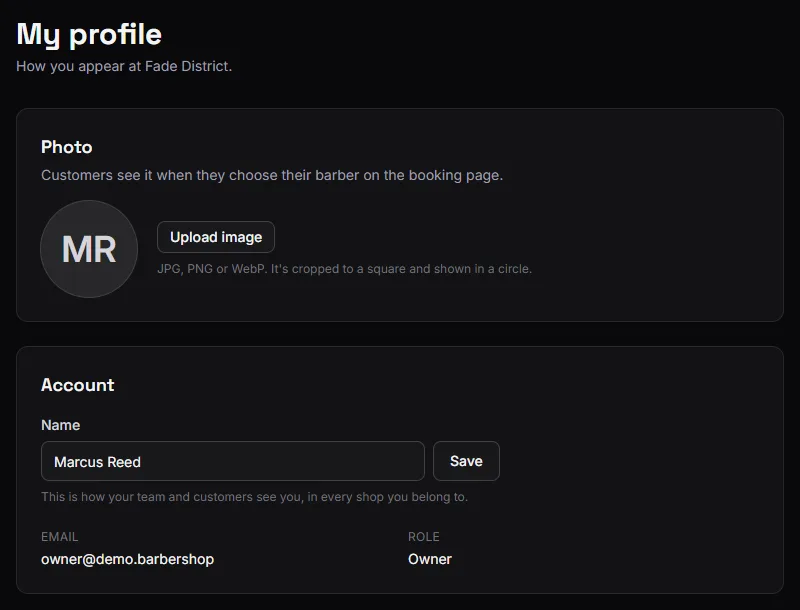
On Barbershop it is the thing customers see.
When somebody picks a barber on your booking page, your photo is next to your name. Without one they get your initials in a circle, which works but sells nothing.
The image is squared and resized in your browser before it is uploaded, so a wide photo is cropped toward the middle. Pick something roughly square, and a face rather than a logo.
A plain, well-lit photo of the barber beats a stylised one. The customer is choosing a person.
Photos are per shop
If you work at two shops on BarberNexa, you have a photo in each, and they are independent. Changing it in one leaves the other alone.
That is usually what you want — the apron is different.
Your name
Edit it here and press Save. The new name shows everywhere straight away: the staff list, the barber on your visits and appointments, and the barber picker on the booking page.
Your name belongs to your account, not to one shop — if you work at two shops on BarberNexa, changing it here changes it in both.
Email and role
Shown here, not edited here.
Your email is how you sign in, and is set when you register.
Your role is set by an owner or manager of that shop. You cannot change your own role — that is what stops somebody promoting themselves. See Roles and what each one can do.
Who else can change your photo
An owner or manager can set or remove any member's photo from Shop → Staff, including yours.
That is there so a manager can finish setting up a new barber without chasing them, not to take the decision away from you — you can change it back from this page whenever you like.
Put BarberNexa on your home screen
On a phone or tablet, My profile shows a card that adds BarberNexa to your home screen. It then opens like any other app: full screen, with its own icon, no browser bars.
- Android (Chrome, Edge, Samsung Internet): press Install app and confirm.
- iPhone and iPad: in Safari, tap Share, then Add to Home Screen, then Add.
The card disappears once BarberNexa is installed, or when you press Not now.
On iPhone and iPad the installed app keeps its own sign-in, separate from Safari's, so you sign in once more the first time you open it. Links in emails still open in the browser.
Your password
Changed through Forgot password on the sign-in page, which emails you a reset link.
Resetting it signs you out of every device. If you think somebody else has your password, that is exactly the behaviour you want.