Check in a walk-in
Add a customer at the counter and hand them a turn number.
Front desk is the screen to leave open on the counter. One customer at a time, three decisions, one button.
1. Who is it
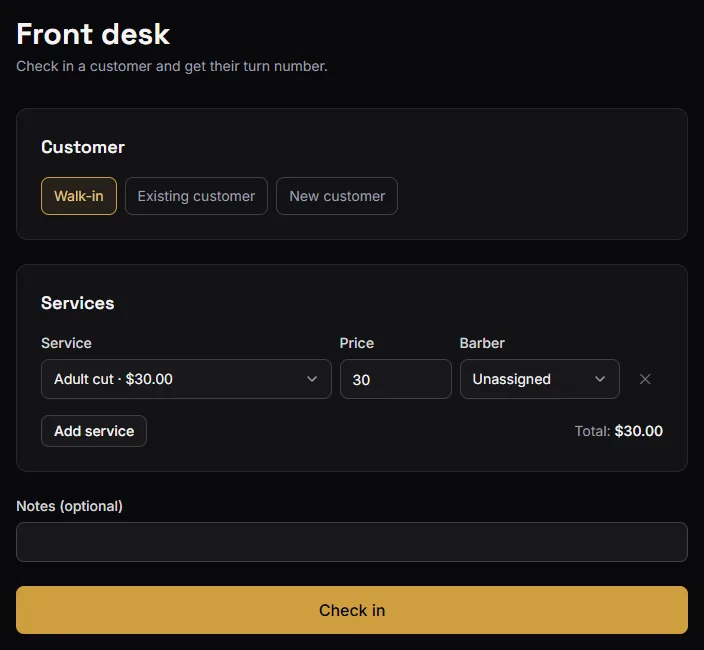
Three modes across the top:
- Walk-in — no details kept. The visit is recorded, the money counts, but there is no customer record afterwards. Fine for someone passing through.
- Existing customer — search by name or phone and pick them. Their history links up.
- New customer — a name, and a phone if they will give you one. Creates the customer record as part of the check-in.
Only Existing and New can be emailed a rating request later, and only if you also have their email. A pure walk-in cannot leave you a review. See Ratings and reviews.
2. What they are having
Add service for each thing on the ticket — up to 20 lines.
Each line carries its own Price, pre-filled from your catalog. Change it right here when this particular cut is not the standard price: a discount for a regular, a longer job, a promotion. Your catalog price is not touched — only this line.
On Barbershop, each line also has a Barber. Set it and per-barber performance and per-barber ratings both work. Leave it Unassigned if you genuinely do not know yet; the revenue still counts, it just lands in an "Unassigned" bucket on the dashboard.
Lines are independent, so a father and son on one ticket can go to two different barbers.
3. Notes, then check in
Notes is free text on the visit — "wants it shorter than last time", "paying cash". Optional.
Press Check in. The screen confirms with the turn number. From there you can go straight to New check-in for the next person in line, or View job to open the ticket.
What just happened
The visit is now Checked in in Jobs, with a number, today's date and a running total. It is not finished — marking it Complete is a separate step, and it is what makes the money appear on your dashboard.
Repeating a previous visit
For a regular who has the same thing every time, open their last visit in Jobs and press Repeat.
That creates a new visit, checked in, with a fresh turn number and the same services — at today's catalog prices, not the old ones. The barber carries over if they still work at the shop.
If the front desk says you have no services
Check-in needs at least one enabled service. Add one under Shop → Services; see Services, prices and durations.