Customizing your booking page
Prices, reviews, photos, your logo and address — what customers see and what they do not.
Everything here lives in Shop → Settings, except service photos, which live with the services.
Show or hide prices
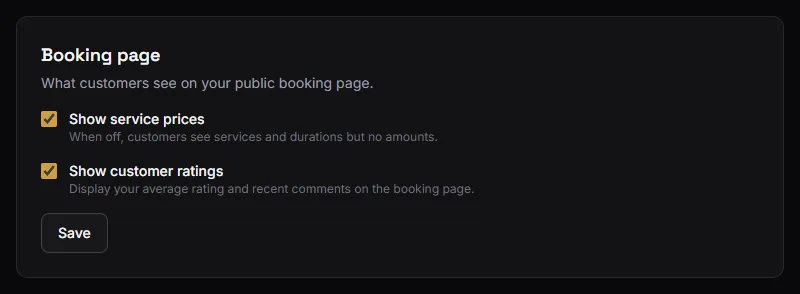
Settings → Booking page → Show service prices.
On, customers see the price of each service and a total. Off, they see services and durations but no amounts at all.
Turn it off if your prices vary by hair length or by barber, or if you would rather discuss them in person. It changes nothing at the counter — your catalog prices still drive the tickets.
Show or hide reviews
Settings → Booking page → Show customer ratings. Off by default.
On, the page shows your average star rating, how many reviews it is based on, and the most recent reviews that came with a written comment — with no customer names.
Collect ratings for a few weeks before turning this on. An average built from two reviews swings wildly on the third, and a page advertising "1 review" reads worse than a page showing none.
See Ratings and reviews.
Your logo
Settings → Logo. Shown in a circle at the top of the booking page.
It is squared and resized in your browser before upload, so a wide logo gets cropped toward the middle. A square-ish image works best. JPEG, PNG or WebP.
Your address and phone
Settings → Shop address. Shown on the booking page and in the emails your customers receive, so they know where to go and how to reach you.
The form adapts to your country — Province or State or Department, Postal code or ZIP. The country itself was set when the shop was created and is not editable here.
Leave every field blank to remove the address; the page then shows no address block rather than an empty one.
Service photos
Shop → Services, on each service. Up to three photos each, JPEG, PNG or WebP under 5 MB, shown to customers as they choose.
Photos of your work, ideally. This is the one place on the page where a customer decides whether you are any good.
Which services appear
Only services marked Available for booking and check-in. Disabling a service hides it from the booking page and from the front desk while keeping it on every past visit that used it.
That is how you retire a service without damaging your history. See Services, prices and durations.
Which barbers appear
Only on Barbershop, and only when at least two are bookable — a picker with one option is not a choice.
Each barber shows with their photo, or their initials if they have none. Photos are set by the member on their own profile, or by a manager from the staff page.