Working a visit
Start, edit, complete or cancel a ticket — and what each one changes.
Jobs is today's queue and every past visit. Filter by Date and Status, or open a visit to edit it.
The five statuses
| Status | What it means |
|---|---|
| Scheduled | Booked for a future time. No turn number yet. |
| Checked in | The customer is here and has a number. Waiting. |
| In progress | In the chair. |
| Completed | Done. This is what counts as revenue. |
| Canceled | Did not happen. Keeps its turn number. |
Moving a visit along
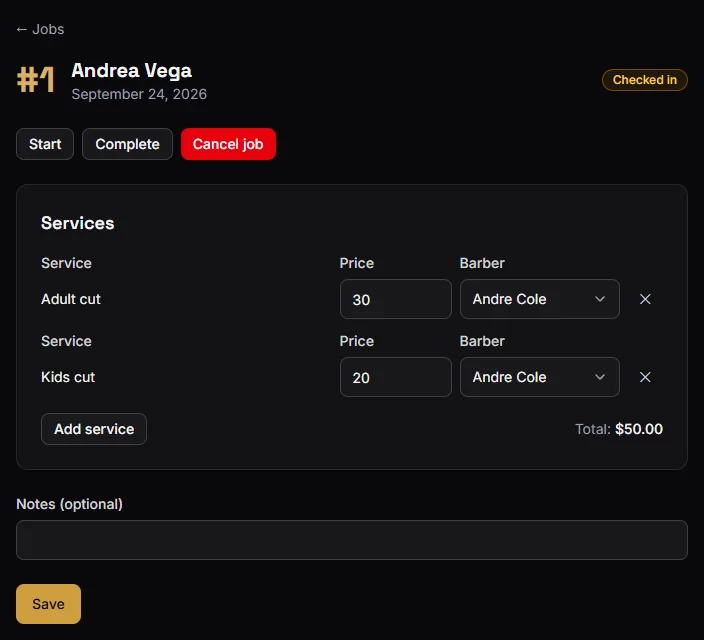
Start takes a checked-in visit to In progress. Useful when several barbers work one queue and everyone needs to see who is already busy.
Complete finishes it. You can complete straight from Checked in without pressing Start first — at a busy counter the extra tap is not worth it.
Completing is the step that matters. Until a visit is completed:
- its money is not in your Revenue,
- it is not in Completed visits,
- its services are not in Services performed,
- and no rating request is sent.
A ticket sitting at Checked in from three days ago is almost always one somebody forgot to close. Filtering Jobs by status is how you find them.
Editing a visit
Open it and you can change the services, the prices charged and the assigned barber — before or after completion. Useful when you add a beard trim halfway through, or when the price was typed wrong.
A canceled visit cannot be edited. It stays exactly as it was when it was canceled, so the record of what was canceled does not drift.
Canceling
Cancel works from Scheduled, Checked in or In progress. It asks for confirmation, because it cannot be undone.
A canceled visit drops off the calendar and out of your revenue, but stays in Jobs and in exports, and keeps its turn number (why).
There is no "no-show" status. A customer who does not turn up is a cancellation — use the Notes field on the visit if you want to record why.
What you cannot do
The statuses only move forward. You cannot un-complete a visit, and you cannot un-cancel one.
If a visit was completed by mistake, edit it down to nothing owed, or cancel-and-recreate depending on which record you would rather keep. If a visit was canceled by mistake, use Repeat on it to create a fresh checked-in visit with the same services.