Managing the schedule
The calendar, checking an appointment in, and moving or canceling one.
Appointments shows scheduled visits on your shop's calendar.
The calendar
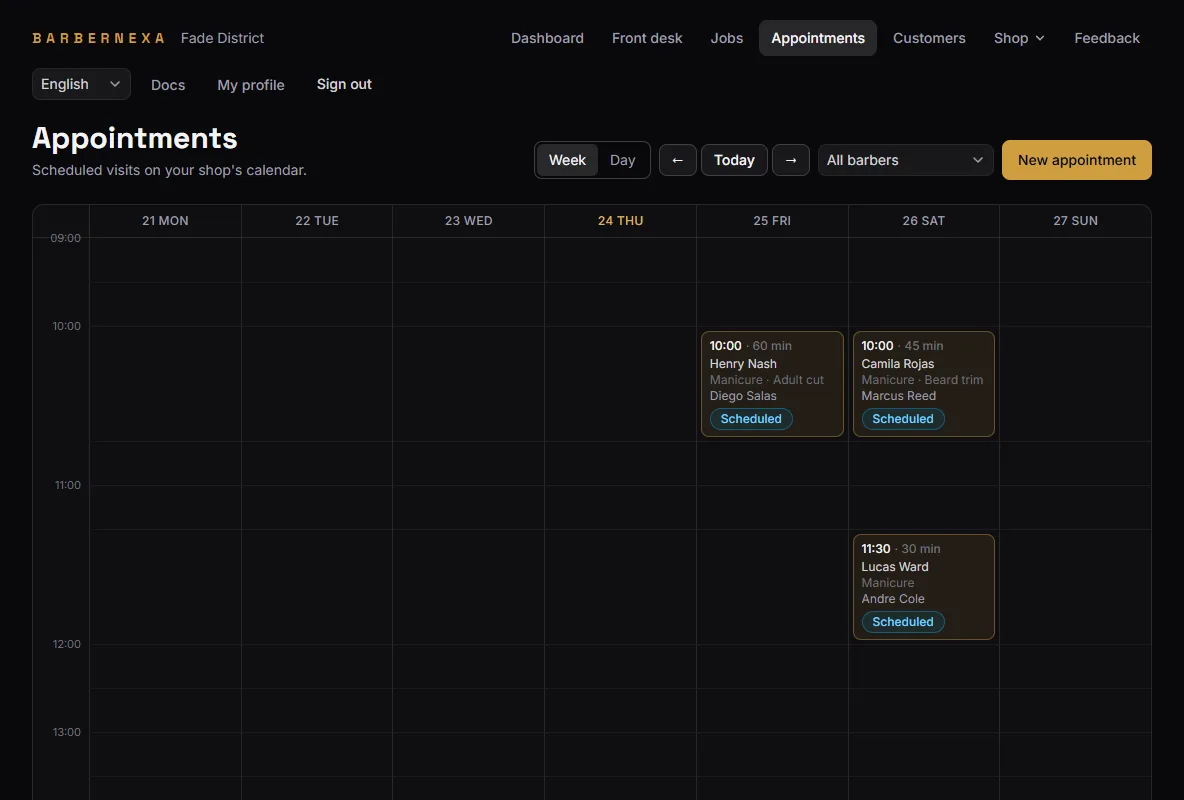
Switch between Week and Day, and move with Previous / Next / Today.
The calendar is drawn on your shop's clock, not the clock of the device you are holding. Checking tomorrow's schedule from another time zone shows your shop's day, at the times your customers were told.
Canceled visits are not drawn. Everything still standing is.
On Barbershop, each appointment also shows who it is with — or Unassigned when the customer took "anyone". A visit split between two barbers shows both names.
Seeing one barber's day
On Barbershop, the All barbers menu next to the calendar controls narrows it to one barber, or to Unassigned — the bookings nobody has claimed yet. The choice sticks while you move between days and between Week and Day, so a barber can keep their own column in view.
Checking an appointment in
When the customer arrives, open the appointment and press Check in.
That is the moment the visit becomes real: it gets the next turn number of the day, moves to Checked in, and joins the same queue as the walk-ins. A banner confirms the number.
From there it behaves like any other visit — Start, Complete, edit the services. See Working a visit.
An appointment that is never checked in never counts. It is not revenue, it is not a completed visit, and it produces no rating request. If somebody turns up and is served, check them in — even late, even if you did it out of order.
Changing an appointment
Open the visit from the calendar or from Jobs and edit it. Services, prices and the assigned barber can all change.
To move it to a different time, cancel it and schedule a new one. There is no drag-to-reschedule, and editing the visit does not move it on the calendar.
Cancellations and no-shows
Cancel removes it from the calendar. It stays in Jobs and in your exports as Canceled, so you keep the record that it was booked.
There is no separate no-show status. A customer who does not turn up is a cancellation; put the reason in the visit's Notes if you want to be able to find it later.
Keeping the calendar honest
The calendar is also what your public booking page reads from when it works out which times are free. A scheduled visit blocks capacity; a canceled one releases it.
So a stale calendar costs you twice: appointments nobody is coming to, and online slots your customers cannot book because of them. Canceling promptly is not tidiness, it is availability.